

Worship
Build your song library and present lyrics.
On this page
Add your songs
No song lyrics ship with Worship Studio. Your library starts empty.
- Choose New in the song library.
- Enter a title, artist and lyrics. You can write your own or paste lyrics from a source you have permission to use.
- Use section labels such as [Verse 1] and [Chorus] to organise the song.
- Save, choose the layout and alignment, and check the preview.
- Choose Send live, then use Previous and Next to move through the song. Use Blank to clear it.
The current release can restore songs from a Worship Studio library backup through Settings → Backup & Transfer. It does not have a general song-file import button or a built-in lyrics catalog.
Use the background toolbar to choose a theme or image. Check text size and contrast on the actual audience screen.
Permission to use lyrics
Create, copy, restore, project or share only lyrics you have the rights or permission to use. Retain required songwriter and copyright notices, and follow your church's applicable licence conditions. Free software does not make third-party songs free of copyright.
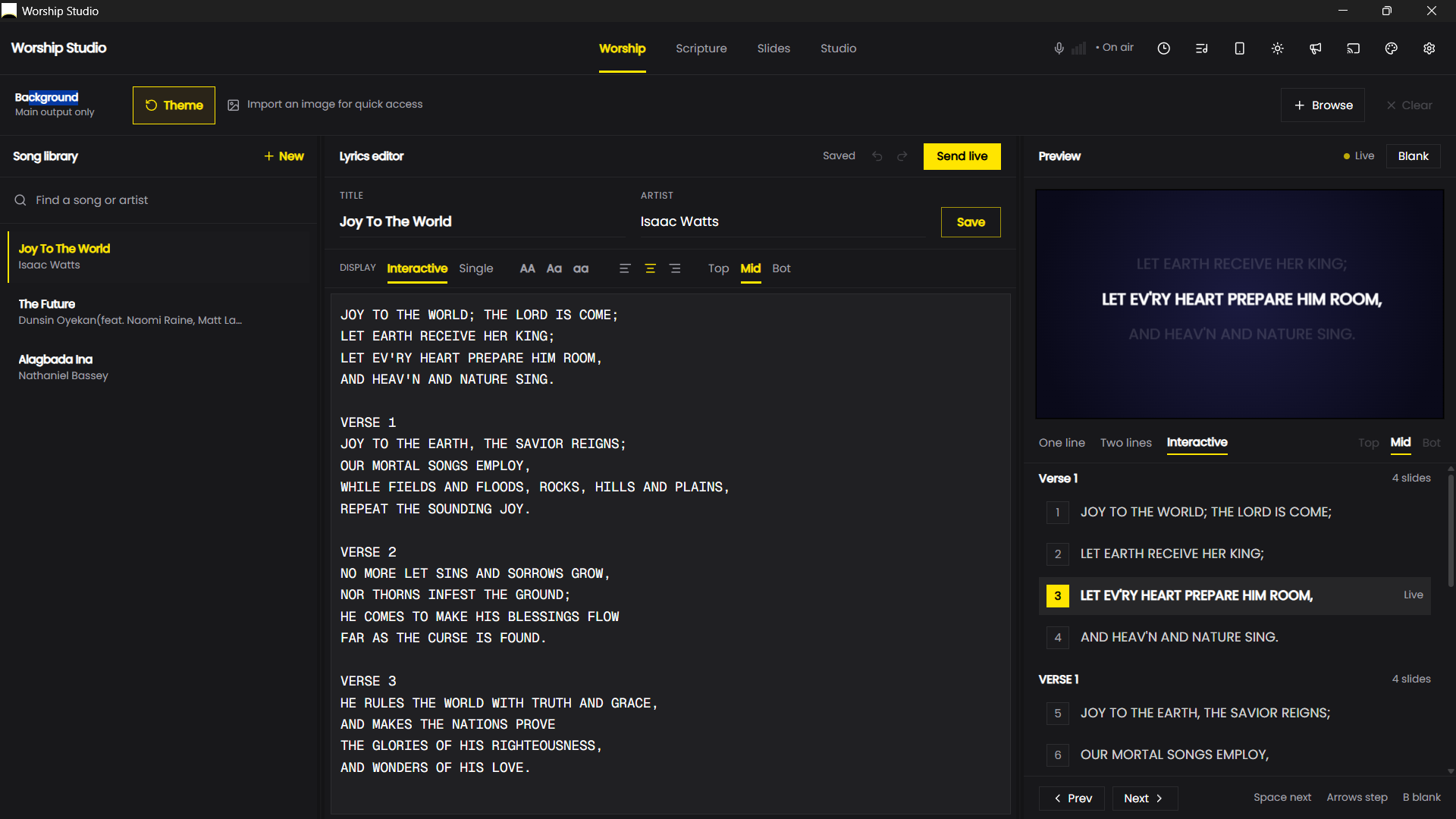
Understand the workspace
The song library holds saved songs, the editor changes the selected song, and the preview/deck shows its sections. Search the library by title. Use an entry's edit or delete control deliberately; deleting a song is different from removing it from a service plan.
Save to library stores changes. Send live saves and projects the current song. Save during preparation; send live when ready for the audience.
Divide and format lyrics
Inspect the sections produced by headings such as [Verse 1] and [Chorus]. Adjust line layout, alignment and vertical position. Uppercase, title-case and lowercase controls change text appearance; proofread names afterward.
Test a long stanza and a short chorus on the projector. Reduce the amount shown at once or adjust the theme if text is clipped. Avoid backgrounds that compete with the words.
Follow the song
- Select the song and confirm its opening section.
- Choose Send live and check the audience output.
- Use Previous/Next to follow the singer's actual order.
- Blank during an instrumental break if appropriate; restore before singing resumes.
- Finish by blanking or moving to the next rehearsed plan item.
If a restored library is empty, check the backup you imported. The installer does not supply songs. See service plans, themes and shortcuts.