

Studio
Save transcripts and optionally generate sermon material.
On this page
Keep a session
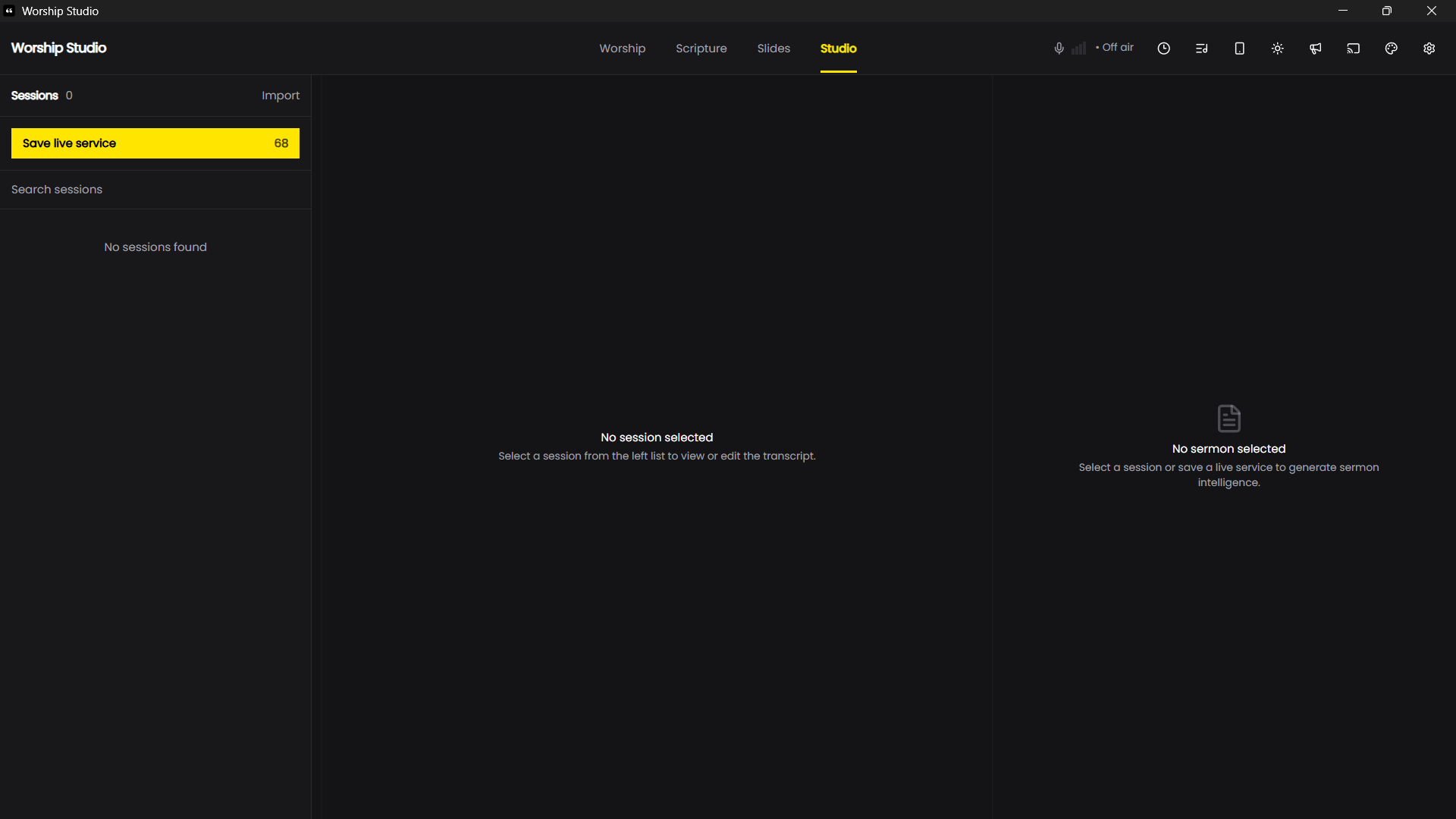
Choose Save live service to keep the current session, or Import to add a session through the app's supported import flow. Select a session to view and edit its transcript. Check recognition errors, names and Bible references before using the text elsewhere.
Saving, importing and editing transcripts do not require a Gemini API key.
Generate with Gemini
- Create your own key in Google AI Studio. Google's API key guide explains the setup.
- Open Settings → API Keys, paste it into Gemini API key and choose Save Key.
- Select a session with a transcript, then use the generation control in Studio.
- Review the results before copying, publishing or sharing them.
Studio's Sermon Intelligence uses Gemini to produce material such as summaries, highlights, prayers and devotional content. A key is required for these AI tools; Deepgram and Gladia keys do not replace it.
The transcript you submit for generation is sent to Google's service. Use content you are allowed to process and share. Google's limits, availability, data terms and any charges apply separately. An API key does not guarantee unlimited free usage.
If generation stops because of a limit or provider error, keep completed results and retry later. Review generated claims and Scripture references against the original message.
Work with sessions
Select a saved service in the session list or search by title. Save live service captures the current session into that list. The transcript editor acts on the selected session; choose Save after corrections before generating from it.
Delete session removes the stored session. Export anything you need first. Imported transcripts still need proofreading: importing cannot establish that a recording or transcription accurately represents every speaker.
Export a transcript
The editor provides TXT, SRT and Markdown downloads. TXT is useful for reading or editing elsewhere. SRT contains timed subtitle entries; check timing against your recording before publishing captions. Markdown provides portable text for notes.
Review generated material
Choose Generate with a nonempty transcript and saved Gemini key. The control shows Working during generation and Regenerate when material exists. Inspect each result panel and check quotations, references and factual claims against the original service.
Sermon Intelligence offers Markdown and Print / PDF. Check the printed layout before distribution. Copy controls let you move individual generated items into your own workflow.
Recover from an error
Check the key, connection, provider quota and selected transcript. Completed sections can remain after a limit or provider error. Retain useful results and retry later rather than repeatedly submitting during a quota failure. Transcript editing and export remain available without successful AI generation.